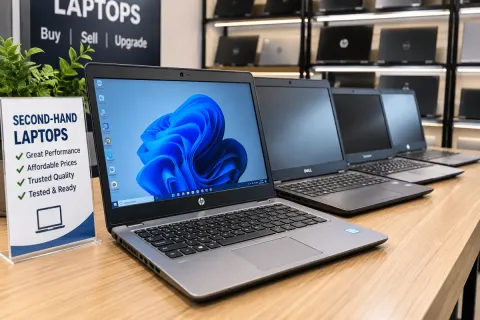
A good second-hand laptop can cost 40–60% less than a new one and still give you years of reliable work. A bad one can cost you twice – once when you buy it and again when you fix it. The difference is almost always in the checking. This guide gives you the same checklist we use at TechDomine when we test a used laptop, so you can buy with confidence whether you buy from us or anyone else.
Why a Second-Hand Laptop Makes Sense in 2026
Business laptops such as the Dell Latitude, Lenovo ThinkPad and HP EliteBook are built for years of daily office use. They have stronger hinges, better keyboards and easier repairs than most budget consumer laptops. When companies refresh their fleets every three to four years, these machines come onto the used market in large numbers – often in very good condition.
For students, freelancers, small offices and home users, that means you can get a business-class laptop with an Intel Core i5 or i7, 16 GB RAM and a fast SSD for the price of an entry-level new laptop. Browse our current stock in Second-Hand Laptops to get an idea of what is available.
Before You Go: Decide What You Need
Checking a laptop is easier when you know what you want. Write down three things:
- Your main work – office documents and browsing, programming, photo editing, or light gaming.
- Your budget – including a small buffer for a charger or bag if needed.
- Size and weight – 13–14 inch laptops are easy to carry; 15.6 inch laptops are more comfortable for long desk work.
If you are not sure which configuration suits you, read our budget guide for students, office and business users first.
The 15-Point Second-Hand Laptop Checklist
1. Body, Hinges and Lid
Open and close the lid several times. The hinge should feel firm and hold the screen at any angle without wobbling. Look for cracks near the hinges, bent corners and missing rubber feet. Small scratches are normal on a used laptop; cracks and loose hinges are not.
2. Screen: Dead Pixels, Lines and Brightness
Open a full-screen white page, then black, red, green and blue. Look for dead or stuck pixels, lines, yellow patches or pressure marks. Turn the brightness to maximum and minimum. Also check the resolution in display settings – a Full HD (1920×1080) screen is far sharper than an HD (1366×768) panel.
3. Keyboard and Touchpad
Open Notepad and press every key, including function keys, arrows and the number row. Check that the backlight works if the model has one. Test the touchpad for smooth movement, two-finger scrolling and both click buttons.
4. Battery Health
This is the most important test on any used laptop. A worn battery will not last long away from the charger. On Windows you can create a battery report in one command, and on a MacBook you can see battery health in settings. We explain both methods step by step in how to check laptop battery health. As a rule of thumb, a battery with more than 75–80% of its design capacity is in good shape.
5. Charger and Charging Port
Plug in the charger and confirm the laptop shows "charging". Wiggle the connector gently – charging should not cut in and out. Make sure the charger is the correct wattage for the model; a weaker charger can cause slow charging or throttling.
6. Storage: SSD, Not Hard Disk
In 2026 there is no reason to buy a laptop with only a mechanical hard disk. An SSD makes the laptop start in seconds and open apps instantly. Check the drive type and size in Task Manager → Performance. Tools such as CrystalDiskInfo show the SSD health percentage; anything marked "Good" is fine.
7. RAM
8 GB is the minimum for smooth Windows 11 use; 16 GB is better if you keep many browser tabs open or use software like Photoshop or Visual Studio Code. Check whether the laptop has a free RAM slot – many business laptops do, which makes a later upgrade cheap. Our SSD and RAM upgrade guide explains how.
8. Processor Generation and Windows 11 Support
Windows 10 support ended in October 2025, so a laptop that cannot run Windows 11 is a poor buy. Officially, Windows 11 needs an Intel 8th-generation or newer processor (or AMD Ryzen 2000 series or newer) with TPM 2.0. Check the processor name in Settings → System → About. An "i5-8350U" is 8th generation; an "i5-6300U" is 6th generation and is not officially supported.
9. Ports
Plug something into every USB port. Test HDMI with a TV or monitor if you use an external display. Check the headphone jack, SD card reader and USB-C charging if the model supports it.
10. Wi-Fi and Bluetooth
Connect to Wi-Fi and run a speed test. Pair a Bluetooth device such as your phone or earbuds. Weak Wi-Fi can be a sign of a damaged antenna cable inside the lid.
11. Webcam, Microphone and Speakers
Open the Camera app and record a short video. Play it back to test the microphone and speakers together. With online meetings a daily routine for most people, these small parts matter.
12. Temperature and Fan Noise
Run a YouTube video or a few browser tabs for ten minutes. The fan should spin up quietly and the bottom should get warm, not too hot to touch. A loud, grinding fan or very high temperature usually means dust or dried thermal paste.
13. BIOS Password Lock
Restart and open the BIOS setup (usually F2, F1 or Del). If it asks for a password you don't have, walk away – ex-corporate laptops sometimes come with locked BIOS settings that are hard to remove.
14. Genuine Windows and Clean Install
Check activation in Settings → System → Activation. Ideally the laptop should come with a clean Windows installation – no leftover user accounts, company software or unknown programs.
15. Bill, Warranty and Return Terms
Always get a proper bill with the model and serial number. Ask what the warranty covers, for how long, and whether the battery and charger are included. Read our Warranty & Returns policy so you know exactly how TechDomine handles this.
Quick Reference Table
| Check | Good sign | Walk away if |
|---|---|---|
| Battery | 75%+ of design capacity | Below 50% with no discount |
| Storage | SSD, health "Good" | Hard disk only |
| Screen | No dead pixels or lines | Lines, patches, flicker |
| Processor | Intel 8th gen+ / Ryzen 2000+ | Cannot run Windows 11 |
| BIOS | Opens without password | Locked with unknown password |
Common Mistakes to Avoid
- Buying on specifications alone. A Core i7 with a dying battery and a hard disk is worse than a Core i5 with a healthy battery and an SSD.
- Skipping the battery test. A new battery can cost a noticeable part of the laptop's price.
- No bill. Without a bill you have no proof of purchase for warranty or resale.
- Ignoring the charger. Cheap non-original chargers can damage the battery over time.
Frequently Asked Questions
Is it safe to buy a second-hand laptop?
Yes, if you check it properly and buy from a seller who gives a bill and warranty. Business laptops in particular are built to last well beyond their first owner.
What is a good battery health for a used laptop?
Around 75–80% of the original design capacity or more is good. Below 60%, expect short backup and plan for a battery replacement.
How much RAM do I need in a second-hand laptop?
8 GB is the minimum for Windows 11; 16 GB is recommended for multitasking, programming or photo editing.
Which brands are best for second-hand laptops?
Business series such as Dell Latitude, Lenovo ThinkPad and HP EliteBook are the most reliable on the used market. See our Dell Latitude review and ThinkPad T-series review for details.
Can I sell my old laptop when I buy a new one?
Yes. TechDomine buys and exchanges old laptops, desktops and MacBooks – see Sell Your Old Laptop / Desktop or read how to sell your old laptop to TechDomine.
Buy a Tested Second-Hand Laptop from TechDomine
Every laptop we sell is checked against this list before it goes on sale. If you would like help choosing, call or WhatsApp us on +91 78276 28511, email connect@techdomine.in, or send a message through our contact page. You can also compare two laptops side by side before you decide.