Slow internet, Wi-Fi that drops in the meeting room, a printer nobody can find – most office IT headaches are really network problems. The good news is that a small office network does not need to be complicated. With the right equipment and neat cabling, it can run for years with very little attention. This guide explains each part in plain language so you can plan a new office or fix an existing one.
How an Office Network Fits Together
A typical small office network has five parts:
- Internet connection from your ISP (fibre broadband or leased line).
- Router or firewall that connects the office to the internet and protects it.
- Network switch that connects all wired devices together.
- Structured cabling – network cables from the switch to every desk, printer, camera and access point.
- Wi-Fi access points for laptops and phones.
Think of it like the plumbing in a building: the internet is the water supply, the router is the main valve, the switch is the distribution pipe and the cables are the pipes to every tap.
1. Choosing the Internet Connection
- Fibre broadband – affordable and fast; ideal for most small offices.
- Leased line – dedicated, guaranteed bandwidth with better support; good for offices that depend on cloud software or video calls all day.
- Backup connection – a second broadband line from a different provider, so work continues if one line goes down.
Size the plan for your team: video calls, cloud backups and large uploads need more upload speed, not just download.
2. Router and Firewall
The router supplied by your ISP is fine for a home, but a business router or firewall gives you:
- Dual-WAN failover – automatically switch to the backup internet line.
- VLANs – separate networks for staff, guests, CCTV and servers.
- VPN – secure access to office files from home.
- Content filtering and security – block malicious websites and threats.
3. Network Switches
A switch connects all your wired devices. Choose:
- Gigabit ports – 1 Gbps on every port is today's minimum.
- Enough ports – count every desk, printer, camera and access point, then add 20–30% for growth.
- PoE (Power over Ethernet) – powers Wi-Fi access points, IP phones and IP cameras through the network cable, so no separate adapters are needed.
- Managed switch – needed if you want VLANs and better monitoring.
4. Structured LAN Cabling
Good cabling is the foundation of a reliable network. With structured cabling, every cable runs from a central network rack with a patch panel to a neatly labelled network point at each desk.
Which Cable Should You Use?
| Cable | Speed | Maximum length | Best for |
|---|---|---|---|
| Cat6 | 1 Gbps (10 Gbps up to about 55 m) | 100 m | Most offices |
| Cat6A | 10 Gbps | 100 m | Future-proof, heavy data use |
| Fibre | 10 Gbps and more | Long distances | Between floors or buildings |
For most offices, Cat6 is the right choice. Choose Cat6A if you want the network ready for 10 Gbps. Use fibre to connect separate floors or buildings, or for runs longer than 100 metres.
Cabling Best Practices
- Run cables in trunking or conduit, away from power cables.
- Label both ends of every cable and every patch panel port.
- Leave spare points in meeting rooms and near printers.
- Test and certify each point after installation.
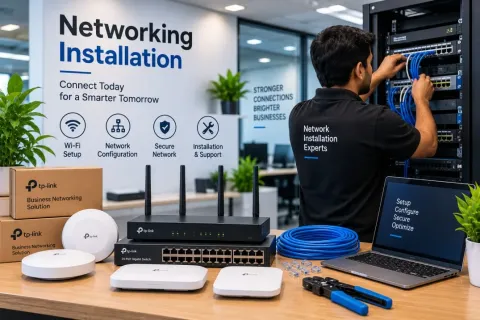
TechDomine designs and installs complete LAN & WAN Cabling with racks, patch panels and labelled points.
5. Wi-Fi Access Points
A single home Wi-Fi router in the corner of the office is the most common cause of poor wireless coverage. Instead:
- Use ceiling-mounted access points connected by cable to the PoE switch.
- Plan roughly one access point for every 15–25 users, or per large room, depending on walls and layout.
- Choose Wi-Fi 6 (802.11ax) or newer for better speed with many users.
- Use a system with central management, so all access points share one Wi-Fi name and devices roam smoothly.
Separate Guest Wi-Fi
Always give visitors a separate guest network that cannot access office computers, printers or files. This is one of the simplest and most effective security steps.
6. Network Security Basics
- Change default passwords on the router, switch, access points, printers and CCTV recorder.
- Use WPA2 or WPA3 encryption on Wi-Fi.
- Put CCTV and IoT devices on their own VLAN.
- Keep firmware updated on all network equipment.
- Back up important data regularly to a NAS or cloud service.
7. Power Backup
Connect the router, switches and access points to a UPS. Network equipment uses very little power, so even a small UPS keeps the internet and phones working through short power cuts.
A Sample Setup for a 15-Person Office
- Fibre broadband + backup broadband line
- Business router/firewall with dual-WAN
- 24-port gigabit managed PoE switch
- About 20 Cat6 network points (desks, printers, meeting room)
- 2 ceiling Wi-Fi 6 access points
- Wall-mount network rack with patch panel
- UPS for the rack
If you are also planning CCTV, the same network can support IP cameras – see our CCTV installation guide.
Common Mistakes to Avoid
- Using the ISP's home router for a busy office.
- Daisy-chaining small unmanaged switches under desks.
- No labels – every change becomes guesswork.
- Guest devices on the same network as office PCs.
- No UPS for network equipment.
Frequently Asked Questions
Which cable is best for office LAN, Cat6 or Cat6A?
Cat6 is enough for most offices and supports gigabit speeds up to 100 metres. Cat6A is better if you want the network ready for 10 Gbps across full 100-metre runs.
How many Wi-Fi access points does my office need?
As a starting point, one access point per 15–25 users or per large room. Walls, floors and layout change this, so a quick site survey gives the right number.
Do I need a managed switch?
If you want separate networks for guests, staff and CCTV (VLANs), or better monitoring, yes. Very small offices can start with an unmanaged gigabit switch.
What is PoE and why is it useful?
Power over Ethernet sends power and data through one network cable. It powers access points, IP phones and IP cameras without separate adapters.
Can TechDomine set up my complete office network?
Yes – cabling, router, switches, Wi-Fi and security. See Networking Installation or contact us for a site visit.
Get Your Office Network Done Right
Whether it is a new office or an upgrade, TechDomine can plan and install everything, along with Office Workstation Setup. Read how we handle a complete office IT setup. Call or WhatsApp +91 78276 28511 or email connect@techdomine.in.